Print Word documents in C# and VB.NET
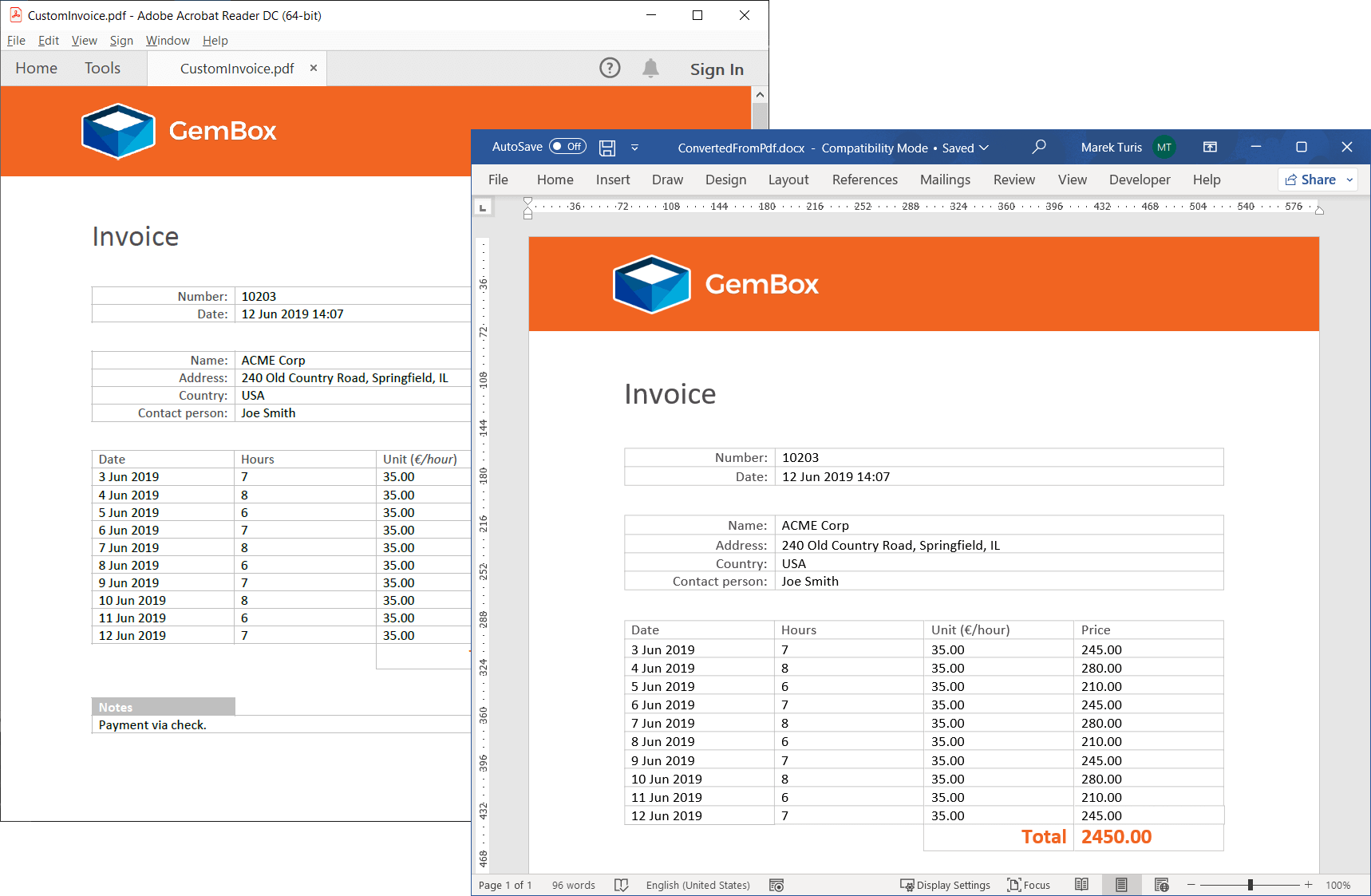
With GemBox.Document you can do silent printing or provide a print dialog and print preview, as shown in the examples for printing in WPF and printing in Windows Forms.
You can print Word documents to the default printer or specify any other local or network printer that's connected to your machine.
The following example shows how you can use GemBox.Document to silently (without requiring user's interaction) print Word files in C# and VB.NET.
using GemBox.Document;

class Program
{
    static void Main()
    {
        // If using the Professional version, put your serial key below.
        ComponentInfo.SetLicense("FREE-LIMITED-KEY");

        DocumentModel document = DocumentModel.Load("Print.docx");

        // Set Word document's page options.
        foreach (Section section in document.Sections)
        {
            PageSetup pageSetup = section.PageSetup;
            pageSetup.Orientation = Orientation.Landscape;
            pageSetup.LineNumberRestartSetting = LineNumberRestartSetting.NewPage;
            pageSetup.LineNumberDistanceFromText = 50;

            PageMargins pageMargins = pageSetup.PageMargins;
            pageMargins.Top = 20;
            pageMargins.Left = 100;
        }

        // Print Word document to default printer (e.g. 'Microsoft Print to Pdf').
        string printerName = null;
        document.Print(printerName);
    }
}
Imports GemBox.Document
Module Program
Sub Main()
' If using the Professional version, put your serial key below.
ComponentInfo.SetLicense("FREE-LIMITED-KEY")
Dim document As DocumentModel = DocumentModel.Load("Print.docx")
' Set Word document's page options.
For Each section As Section In document.Sections
Dim pageSetup As PageSetup = section.PageSetup
pageSetup.Orientation = Orientation.Landscape
pageSetup.LineNumberRestartSetting = LineNumberRestartSetting.NewPage
pageSetup.LineNumberDistanceFromText = 50
Dim pageMargins As PageMargins = pageSetup.PageMargins
pageMargins.Top = 20
pageMargins.Left = 100
Next
' Print Word document to default printer (e.g. 'Microsoft Print to Pdf').
Dim printerName As String = Nothing
document.Print(printerName)
End Sub
End Module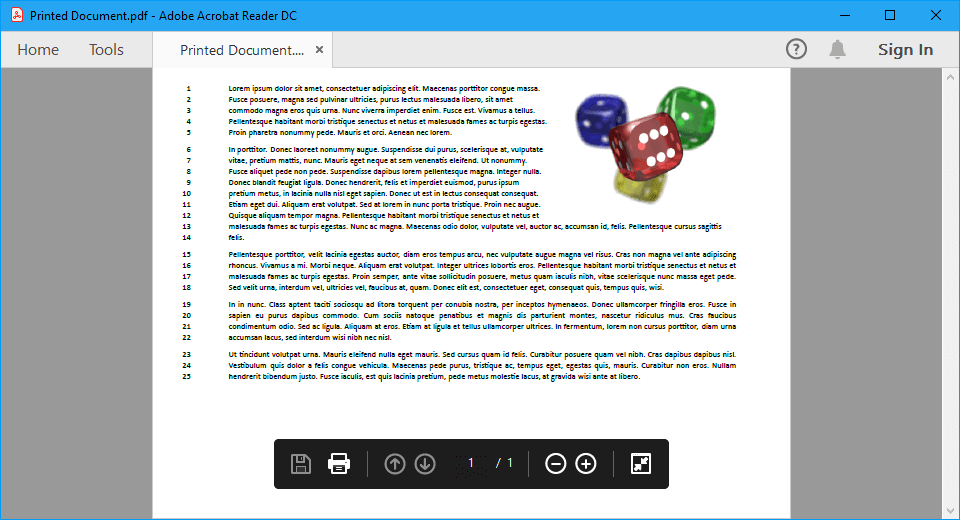
GemBox.Document uses System.Printing namespace for managing print queues and print jobs. To leverage advanced printing capabilities, like specifying the printer's paper source (tray) or specifying two-sided (duplex) printing, you can use the PrintTicket class.
Using the PrintTicket class, you can create an object that defines or configures the desired printer's features. You provide that configuration in the form of an XML stream (by calling PrintTicket.GetXmlStream method) to GemBox.Document's PrintOptions.
Print Word documents in a WPF application
The following example shows how you can use PrintDialog to define GemBox.Document's print options. It also shows how you can use the DocumentViewer control for print previewing.
<Window x:Class="MainWindow"
        xmlns="http://schemas.microsoft.com/winfx/2006/xaml/presentation"
        xmlns:x="http://schemas.microsoft.com/winfx/2006/xaml"
        Title="Printing in WPF application" Height="450" Width="800">
    <DockPanel>
        <StackPanel DockPanel.Dock="Top" Orientation="Horizontal" Margin="5">
            <Button x:Name="LoadFileBtn" Content="Load" Width="100" Margin="5,0" Click="LoadFileBtn_Click"/>
            <Button x:Name="PrintFileBtn" Content="Print" Width="100" Margin="5,0" Click="PrintFileBtn_Click"/>
        </StackPanel>
        <DocumentViewer x:Name="DocViewer"/>
    </DockPanel>
</Window>
using GemBox.Document;
using Microsoft.Win32;
using System.Windows;
using System.Windows.Controls;
using System.Windows.Xps.Packaging;
public partial class MainWindow : Window
{
private DocumentModel document;
public MainWindow()
{
ComponentInfo.SetLicense("FREE-LIMITED-KEY");
InitializeComponent();
}
private void LoadFileBtn_Click(object sender, RoutedEventArgs e)
{
OpenFileDialog openFileDialog = new OpenFileDialog();
openFileDialog.Filter =
"DOCX files (*.docx, *.dotx, *.docm, *.dotm)|*.docx;*.dotx;*.docm;*.dotm" +
"|DOC files (*.doc, *.dot)|*.doc;*.dot" +
"|RTF files (*.rtf)|*.rtf" +
"|HTML files (*.html, *.htm)|*.html;*.htm" +
"|PDF files (*.pdf)|*.pdf" +
"|Word XML files (*.xml)|*.xml" +
"|TXT files (*.txt)|*.txt";
if (openFileDialog.ShowDialog() == true)
{
this.document = DocumentModel.Load(openFileDialog.FileName);
this.ShowPrintPreview();
}
}
private void PrintFileBtn_Click(object sender, RoutedEventArgs e)
{
if (this.document == null)
return;
PrintDialog printDialog = new PrintDialog() { UserPageRangeEnabled = true };
if (printDialog.ShowDialog() == true)
{
PrintOptions printOptions = new PrintOptions(printDialog.PrintTicket.GetXmlStream());
printOptions.FromPage = printDialog.PageRange.PageFrom == 0 ? 0 : printDialog.PageRange.PageFrom - 1;
printOptions.ToPage = printDialog.PageRange.PageTo == 0 ? int.MaxValue : printDialog.PageRange.PageTo - 1;
this.document.Print(printDialog.PrintQueue.FullName, printOptions);
}
}
private void ShowPrintPreview()
{
XpsDocument xpsDocument = this.document.ConvertToXpsDocument(SaveOptions.XpsDefault);
// Note, XpsDocument must stay referenced so that DocumentViewer can access additional resources from it.
// Otherwise, GC will collect/dispose XpsDocument and DocumentViewer will no longer work.
this.DocViewer.Tag = xpsDocument;
this.DocViewer.Document = xpsDocument.GetFixedDocumentSequence();
}
}Imports GemBox.Document
Imports Microsoft.Win32
Imports System.Windows
Imports System.Windows.Controls
Imports System.Windows.Xps.Packaging
Partial Public Class MainWindow
Inherits Window
Dim document As DocumentModel
Public Sub New()
ComponentInfo.SetLicense("FREE-LIMITED-KEY")
InitializeComponent()
End Sub
Private Sub LoadFileBtn_Click(sender As Object, e As RoutedEventArgs)
Dim openFileDialog As New OpenFileDialog()
openFileDialog.Filter =
"DOCX files (*.docx, *.dotx, *.docm, *.dotm)|*.docx;*.dotx;*.docm;*.dotm" &
"|DOC files (*.doc, *.dot)|*.doc;*.dot" &
"|RTF files (*.rtf)|*.rtf" &
"|HTML files (*.html, *.htm)|*.html;*.htm" &
"|PDF files (*.pdf)|*.pdf" &
"|Word XML files (*.xml)|*.xml" &
"|TXT files (*.txt)|*.txt"
If (openFileDialog.ShowDialog() = True) Then
Me.document = DocumentModel.Load(openFileDialog.FileName)
Me.ShowPrintPreview()
End If
End Sub
Private Sub PrintFileBtn_Click(sender As Object, e As RoutedEventArgs)
If document Is Nothing Then Return
Dim printDialog As New PrintDialog() With {.UserPageRangeEnabled = True}
If (printDialog.ShowDialog() = True) Then
Dim printOptions As New PrintOptions(printDialog.PrintTicket.GetXmlStream())
printOptions.FromPage = If(printDialog.PageRange.PageFrom = 0, 0, printDialog.PageRange.PageFrom - 1)
printOptions.ToPage = If(printDialog.PageRange.PageTo = 0, Integer.MaxValue, printDialog.PageRange.PageTo - 1)
Me.document.Print(printDialog.PrintQueue.FullName, printOptions)
End If
End Sub
Private Sub ShowPrintPreview()
Dim xpsDocument As XpsDocument = document.ConvertToXpsDocument(SaveOptions.XpsDefault)
' Note, XpsDocument must stay referenced so that DocumentViewer can access additional resources from it.
' Otherwise, GC will collect/dispose XpsDocument and DocumentViewer will no longer work.
Me.DocViewer.Tag = xpsDocument
Me.DocViewer.Document = xpsDocument.GetFixedDocumentSequence()
End Sub
End Class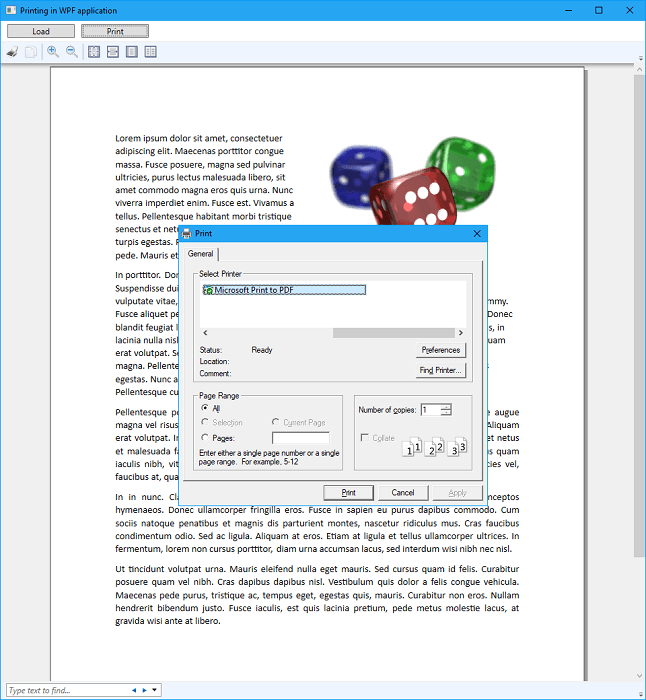
Print Word documents in a Windows Forms application
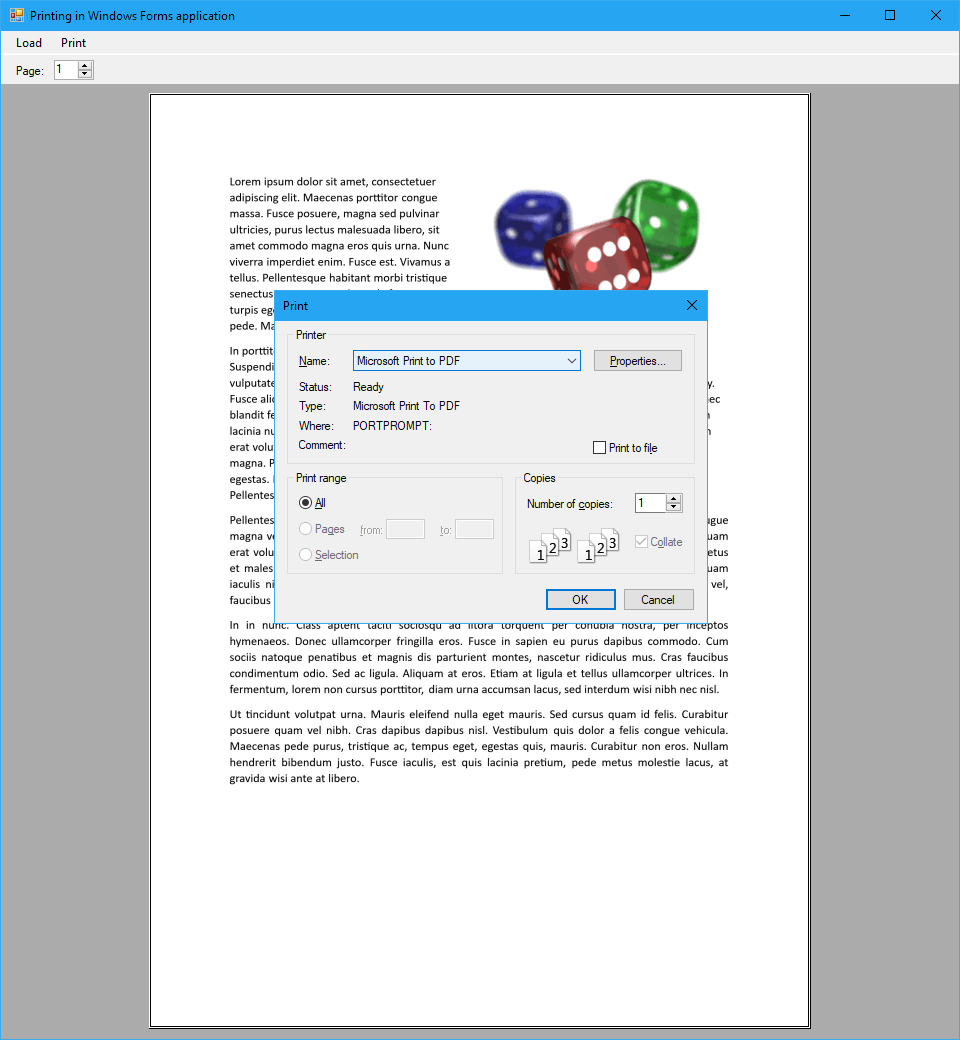
The following example shows how you can render document's pages as images and draw those images on a PrintDocument.PrintPage event for print previewing.
using GemBox.Document;
using System;
using System.Drawing;
using System.Drawing.Printing;
using System.IO;
using System.Windows.Forms;

public partial class Form1 : Form
{
    private DocumentModel document;

    public Form1()
    {
        ComponentInfo.SetLicense("FREE-LIMITED-KEY");
        InitializeComponent();
    }

    private void LoadFileMenuItem_Click(object sender, EventArgs e)
    {
        OpenFileDialog openFileDialog = new OpenFileDialog();
        openFileDialog.Filter =
            "DOCX files (*.docx, *.dotx, *.docm, *.dotm)|*.docx;*.dotx;*.docm;*.dotm" +
            "|DOC files (*.doc, *.dot)|*.doc;*.dot" +
            "|RTF files (*.rtf)|*.rtf" +
            "|HTML files (*.html, *.htm)|*.html;*.htm" +
            "|PDF files (*.pdf)|*.pdf" +
            "|Word XML files (*.xml)|*.xml" +
            "|TXT files (*.txt)|*.txt";

        if (openFileDialog.ShowDialog() == DialogResult.OK)
        {
            this.document = DocumentModel.Load(openFileDialog.FileName);
            this.ShowPrintPreview();
        }
    }

    private void PrintFileMenuItem_Click(object sender, EventArgs e)
    {
        if (this.document == null)
            return;

        PrintDialog printDialog = new PrintDialog() { AllowSomePages = true };
        if (printDialog.ShowDialog() == DialogResult.OK)
        {
            PrinterSettings printerSettings = printDialog.PrinterSettings;
            PrintOptions printOptions = new PrintOptions();

            // Set PrintOptions properties based on PrinterSettings properties.
            printOptions.CopyCount = printerSettings.Copies;
            printOptions.FromPage = printerSettings.FromPage == 0 ? 0 : printerSettings.FromPage - 1;
            printOptions.ToPage = printerSettings.ToPage == 0 ? int.MaxValue : printerSettings.ToPage - 1;

            this.document.Print(printerSettings.PrinterName, printOptions);
        }
    }

    private void ShowPrintPreview()
    {
        // Create image for each Word document's page.
        Image[] images = this.CreatePrintPreviewImages();
        int imageIndex = 0;

        // Draw each page's image on PrintDocument for print preview.
        var printDocument = new PrintDocument();
        printDocument.PrintPage += (sender, e) =>
        {
            using (Image image = images[imageIndex])
            {
                var graphics = e.Graphics;
                var region = graphics.VisibleClipBounds;

                // Rotate image if it has landscape orientation.
                if (image.Width > image.Height)
                    image.RotateFlip(RotateFlipType.Rotate270FlipNone);

                graphics.DrawImage(image, 0, 0, region.Width, region.Height);
            }

            ++imageIndex;
            e.HasMorePages = imageIndex < images.Length;
        };

        this.PageUpDown.Value = 1;
        this.PageUpDown.Maximum = images.Length;
        this.PrintPreviewControl.Document = printDocument;
    }

    private Image[] CreatePrintPreviewImages()
    {
        var pages = this.document.GetPaginator().Pages;

        var images = new Image[pages.Count];
        var imageOptions = new ImageSaveOptions();

        for (int pageIndex = 0; pageIndex < pages.Count; ++pageIndex)
        {
            var imageStream = new MemoryStream();
            pages[pageIndex].Save(imageStream, imageOptions);
            images[pageIndex] = Image.FromStream(imageStream);
        }

        return images;
    }

    private void PageUpDown_ValueChanged(object sender, EventArgs e)
    {
        this.PrintPreviewControl.StartPage = (int)this.PageUpDown.Value - 1;
    }
}
Imports GemBox.Document
Imports System
Imports System.Drawing
Imports System.Drawing.Printing
Imports System.IO
Imports System.Windows.Forms
Partial Public Class Form1
Inherits Form
Dim document As DocumentModel
Public Sub New()
ComponentInfo.SetLicense("FREE-LIMITED-KEY")
InitializeComponent()
End Sub
Private Sub LoadFileMenuItem_Click(sender As Object, e As EventArgs) Handles LoadFileMenuItem.Click
Dim openFileDialog As New OpenFileDialog()
openFileDialog.Filter =
"DOCX files (*.docx, *.dotx, *.docm, *.dotm)|*.docx;*.dotx;*.docm;*.dotm" &
"|DOC files (*.doc, *.dot)|*.doc;*.dot" &
"|RTF files (*.rtf)|*.rtf" &
"|HTML files (*.html, *.htm)|*.html;*.htm" &
"|PDF files (*.pdf)|*.pdf" &
"|Word XML files (*.xml)|*.xml" &
"|TXT files (*.txt)|*.txt"
If (openFileDialog.ShowDialog() = DialogResult.OK) Then
Me.document = DocumentModel.Load(openFileDialog.FileName)
Me.ShowPrintPreview()
End If
End Sub
Private Sub PrintFileMenuItem_Click(sender As Object, e As EventArgs) Handles PrintFileMenuItem.Click
If Me.document Is Nothing Then Return
Dim printDialog As New PrintDialog() With {.AllowSomePages = True}
If (printDialog.ShowDialog() = DialogResult.OK) Then
Dim printerSettings As PrinterSettings = printDialog.PrinterSettings
Dim printOptions As New PrintOptions()
' Set PrintOptions properties based on PrinterSettings properties.
printOptions.CopyCount = printerSettings.Copies
printOptions.FromPage = If(printerSettings.FromPage = 0, 0, printerSettings.FromPage - 1)
printOptions.ToPage = If(printerSettings.ToPage = 0, Integer.MaxValue, printerSettings.ToPage - 1)
Me.document.Print(printerSettings.PrinterName, printOptions)
End If
End Sub
Private Sub ShowPrintPreview()
' Create image for each Word document's page.
Dim images As Image() = Me.CreatePrintPreviewImages()
Dim imageIndex As Integer = 0
' Draw each page's image on PrintDocument for print preview.
Dim printDocument = New PrintDocument()
AddHandler printDocument.PrintPage,
Sub(sender, e)
Using image As Image = images(imageIndex)
Dim graphics = e.Graphics
Dim region = graphics.VisibleClipBounds
' Rotate image if it has landscape orientation.
If image.Width > image.Height Then image.RotateFlip(RotateFlipType.Rotate270FlipNone)
graphics.DrawImage(image, 0, 0, region.Width, region.Height)
End Using
imageIndex += 1
e.HasMorePages = imageIndex < images.Length
End Sub
Me.PageUpDown.Value = 1
Me.PageUpDown.Maximum = images.Length
Me.printPreviewControl.Document = printDocument
End Sub
Private Function CreatePrintPreviewImages() As Image()
Dim pages = Me.document.GetPaginator().Pages
Dim images = New Image(pages.Count - 1) {}
Dim imageOptions As New ImageSaveOptions()
For pageIndex As Integer = 0 To pages.Count - 1
Dim imageStream = New MemoryStream()
pages(pageIndex).Save(imageStream, imageOptions)
images(pageIndex) = Image.FromStream(imageStream)
Next
Return images
End Function
Private Sub PageUpDown_ValueChanged(sender As Object, e As EventArgs) Handles PageUpDown.ValueChanged
Me.printPreviewControl.StartPage = Me.PageUpDown.Value - 1
End Sub
End Class